


About 53% of visitors leave a website with slow page speed that takes more than 3 seconds to load. If you run a local business, that means half your customers are gone before your homepage even appears. Meanwhile, your faster competitors are getting the calls, bookings, and Google ranks you deserve.
You have tried compressing images or installing a speed plugin, but nothing really changed. Most guides push confusing terms like LCP, TTFB, or render-blocking scripts, without showing what matters for a local shop. So you stay stuck, watching your rankings drop.
This guide fixes that in plain English. You will learn how page speed affects local SEO, how to test your site with free tools, and how Core Web Vitals actually work. You will also get step-by-step fixes for hosting, images, caching, and more, no coding needed.
Key Points:
- Page speed measures how fast your page loads and becomes usable for real visitors.
- Google ranks pages by speed, especially on mobile and for “near me” local searches.
- Core Web Vitals target 2.5s LCP, 200ms INP, and 0.1 CLS or less.
- Free tools like PageSpeed Insights, GTmetrix, and Pingdom show your scores and exact fixes.
- The biggest wins come from better hosting, image optimization, caching, and a CDN.
What Is Page Speed?
Page speed is the time your web page takes to load, show its main content, and become usable in a visitor’s browser. It covers text, images, videos, and background scripts like analytics or chat widgets. Basically, it measures how fast your site feels to a real person.
Developers once tracked “fully loaded” time. That meant waiting for every tracking pixel to finish. Today, Google measures what users feel, not what runs in the background.
Modern page speed tracks three moments. First, how fast the server responds. Second, when the main content appears. Third, how fast the page reacts to a tap or click.
Why Page Speed Matters More for Local Businesses Than You Think
Page speed matters more for local businesses because nearby customers are ready to buy right now, and a slow site sends them straight to a competitor. When someone searches for a nearby plumber, dentist, or bakery, they act within minutes.Even a small delay in page load time can increase bounce rates and reduce user engagement.
Slow sites also hurt paid ads. Google lowers your Ads quality score, which raises your cost per click. So a slow site costs you twice, once in lost visitors and again in wasted ad spend.
Almost half of all users say they will never return to a slow-loading website. For a local shop, that means losing repeat customers who live just down the street.
Page Speed vs. Load Time vs. Site Speed
Page speed, load time, and site speed sound similar, but each measures something different. Page speed is how fast one page becomes visible and usable, while load time is the exact seconds a full page needs to finish loading.
Site speed is the average across all your pages, like your homepage, contact page, and service pages. Google ranks individual pages, so a fast homepage will not save you if your booking page is slow.
How Page Speed Impacts Your Local SEO Rankings
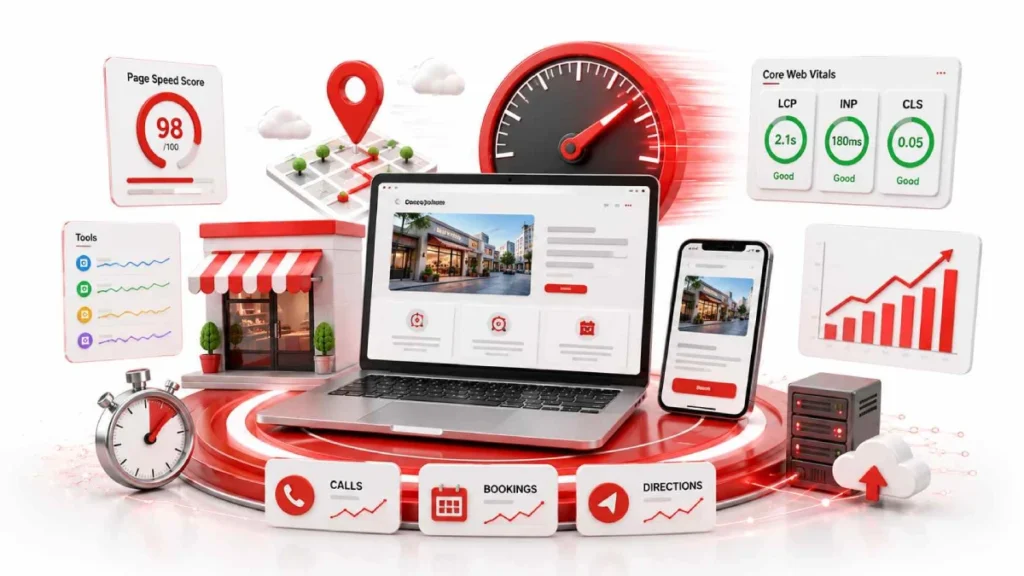
Page speed affects your local SEO rankings because Google treats site performance as a ranking signal. Google confirmed this in 2010. It extended the rule to mobile with the 2018 Speed Update. In tight local markets, speed often decides who ranks higher.
Slow pages also waste your crawl budget. They push bounce rates up. When visitors leave fast, Google sees your site as unhelpful. Your rankings drop over time.
Mobile Speed and “Near Me” Searches
Mobile speed drives “near me” searches because most local queries happen on phones. Google uses mobile-first indexing, so it ranks your site based on mobile performance. If your page lags on 4G, users tap a competitor from the Map Pack. Conversions are also 5 times higher within a 1-kilometer radius, making mobile speed critical for local traffic.
The Local Micro-Conversions You Lose When Your Site Is Slow
Slow pages kill the small actions that lead to local sales. Those include phone calls, direction taps, and booking clicks.A 1-second delay can reduce conversions by up to 20%. For service businesses like HVAC or towing, that means losing jobs. The competitor whose “Call Now” button loads first wins.
How to Test Your Website’s Current Speed
You test your website’s speed by running your page URL through free tools like Google PageSpeed Insights, GTmetrix, or Pingdom. These tools show your load time, Core Web Vitals scores, and specific fixes to make. Always test both mobile and desktop, since most local traffic comes from phones.
Run tests on your key pages, not only the homepage. Your booking page, service pages, and contact page matter most for local sales.
Google PageSpeed Insights: Your Starting Point
Google PageSpeed Insights is the best free tool to start because it scores your page from 0 to 100 and lists exact fixes. A score of 90+ is good, 50-89 needs work, and below 50 is poor. The tool separates mobile and desktop reports, so you see where each version struggles. It also flags issues like oversized images, unused CSS, and render-blocking scripts.
Understanding Lab Data vs. Real User Data
Lab data comes from a simulated test, while field data shows how real visitors experience your site. Lab data helps with debugging, but Google ranks your site using field data from the Chrome User Experience Report. To pass, 75% of your real visits must hit the “good” threshold. Focus on field data, since that is what affects your rankings.
Other Free Speed Testing Tools
GTmetrix, Pingdom, and WebPageTest are strong free alternatives that add details PageSpeed Insights misses. GTmetrix shows a visual timeline of how your page renders. Pingdom lets you test from different countries. WebPageTest offers waterfall charts that reveal exactly which files slow your page down.
Core Web Vitals Explained
Core Web Vitals are three Google metrics that track how your page loads, responds, and stays stable for real users. They became a ranking factor in 2021, and your page must hit the “good” mark on all three to pass.
The three metrics are LCP, INP, and CLS. Each tracks a different part of the user experience, using real visitor data from the past 28 days.
LCP: How Fast Your Main Content Loads
Largest Contentful Paint (LCP) measures how fast your main visual element appears. That might be a hero image or headline. A good score is 2.5 seconds or less. Slow LCP comes from heavy images, slow servers, or render-blocking scripts. Fix it by compressing images and upgrading your hosting.
INP: How Quickly Your Site Responds to Clicks
Interaction to Next Paint (INP) measures how fast your page reacts to clicks, taps, and key presses.A response time of 200 milliseconds or less is considered good. INP replaced FID in March 2024 and tracks every interaction, not just the first. Heavy JavaScript from chat widgets or tracking scripts is the usual cause of poor scores.
CLS: Why Your Page Shouldn’t Shift Around
Cumulative Layout Shift (CLS) measures how much your page jumps around while loading.A score of 0.1 or less is considered good. . Shifts happen when images, ads, or fonts load without reserved space. Fix it by setting width and height on all images and reserving space for late-loading elements.
Why Your Local Business Website Is Slow: The Usual Suspects
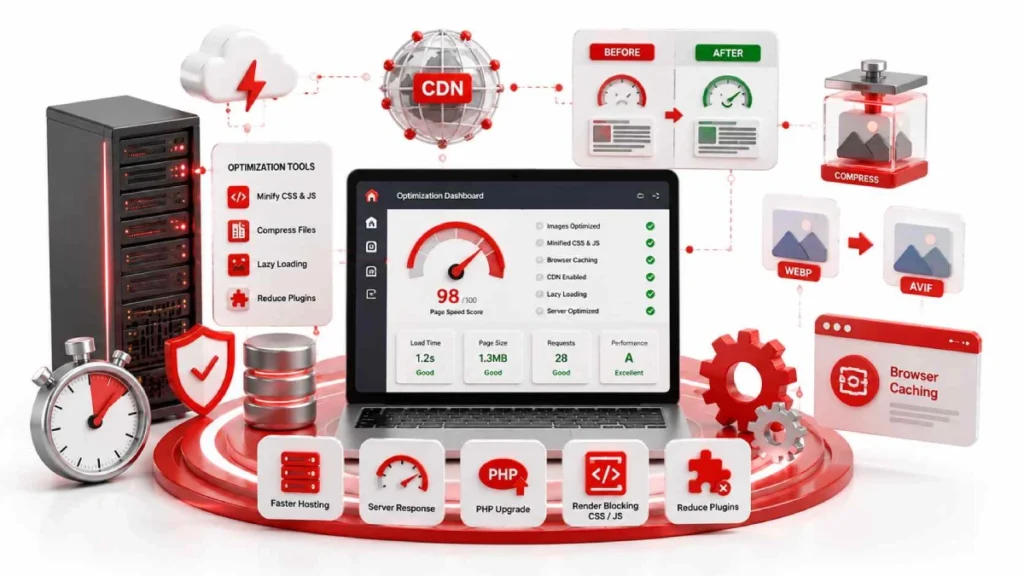
Your local business website is slow because of common setup problems. Cheap hosting, oversized images, and too many plugins are the top causes. Most small business sites run on tight budgets with no performance checkups. Over time, these small issues stack up and drag your page speed down.
These factors are the most common causes of a slow local website:
- Oversized images, like uncompressed photos from your phone or stock sites, that can double your page weight.
- Cheap shared hosting, where hundreds of sites share one server and fight for resources during peak hours.
- Too many plugins, especially heavy ones like WPBakery or booking tools that load scripts on every page.
- Render-blocking files, like large CSS and JavaScript, that stop your page from showing until they finish loading.
- No caching setup, forcing return visitors to reload every file from scratch on each visit.
- Distant server locations, like hosting in London when your customers are in Sydney, that add 150-200ms of extra delay.
Fixing even two or three of these can cut your load time in half. Start with images and hosting, since they usually cause the biggest slowdowns.
Step-by-Step Fixes to Improve Your Page Speed
Improve your page speed by starting with quick wins, then upgrading your hosting, images, and caching. Even three or four smart changes can cut your load time in half.
Quick Wins for Your First Hour
In your first hour, focus on easy fixes that need no coding skills. Update your CMS, themes, and plugins, then delete anything you do not use. Clean your database of spam and old revisions, and install a free caching plugin like WP Super Cache.
Choose a Faster Web Host
Your web host is the foundation of your site’s speed, so no fix can save you from a slow server. Budget shared hosting has a TTFB of 1,340ms, while managed WordPress hosting drops that to 285ms. Look for hosts running LiteSpeed, like Kinsta, WP Engine, or SiteGround.
Optimize Your Images the Right Way
Optimize your images by converting them to WebP or AVIF, compressing file size, and setting fixed dimensions. WebP cuts image size by 25-34%, and AVIF adds another 22% on top. Use plugins like ShortPixel or Imagify to compress on upload, and enable lazy loading for below-the-fold images.
Enable Browser Caching
Browser caching tells the visitor’s browser to save your logos, CSS, and JavaScript files on their device. This cuts load time for repeat visitors by up to 80%. Add caching rules to your .htaccess file or use a plugin like WP Rocket.
Set Up a Content Delivery Network (CDN)
A CDN stores copies of your site on servers around the world, so visitors load pages from the closest location. Cloudflare offers a free plan that works well for most local businesses. Setup takes 15 minutes: create an account, add your domain, and update your nameservers.
Compress and Minify CSS, JavaScript, and HTML
Compressing and minifying your code strips out spaces, comments, and extra characters to shrink file sizes. Brotli usually cuts file size 15-20% more than Gzip. Use plugins like Autoptimize or WP Rocket, and defer non-critical scripts like chat widgets.
Reduce the Number of Plugins You Use
Every active plugin adds code, database queries, and scripts that slow your site down. Aim to keep total active plugins under 20 for best performance. Use a script manager like Perfmatters to load plugins only on the pages that need them.
Improve Your Server Response Time
Server response time, measured as Time to First Byte (TTFB), sets the ceiling for how fast your page can load. Google wants TTFB under 200ms. Upgrade to PHP 8.1 or higher for 40% faster processing, and add object caching with Redis or Memcached.
Common Page Speed Mistakes Small Business Owners Make
Small business owners often slow their sites down with common setup mistakes. These waste time, break features, and hurt your rankings. Here are the most common page speed mistakes to watch out for:
- Chasing a perfect 100/100 lab score, which breaks forms, tracking, and other features.
- Using heavy page builders, like Elementor or WPBakery, that add bloated code.
- Sticking with cheap shared hosting under $10 a month, where slow servers ruin your speed.
- Stacking multiple caching plugins, like WP Rocket plus W3 Total Cache, which causes conflicts.
- Testing only on desktop, ignoring that half of local visitors come from mobile phones.
- Ignoring third-party scripts, like chat widgets, Facebook Pixel, and heatmap tools, that drag down INP scores.
Fix these first before adding new tools. A clean, simple setup beats a heavily tweaked one.
FAQs
Is page speed still important for Google rankings in 2026?
Yes, page speed is still an active Google ranking factor in 2026, especially through Core Web Vitals. In competitive local markets, faster sites often win the top spots when other ranking factors are equal.
What is a good PageSpeed Insights score?
A PageSpeed Insights score of 90 or above indicates good performance on mobile and desktop. Google considers scores between 50 and 89 to need improvement, and it rates anything below 50 as poor.
Is a CDN worth it for a small local business website?
Yes, a CDN is worth it for most local businesses because it improves speed and blocks bad traffic. Cloudflare’s free plan meets the needs of most small businesses.
Can slow page speed affect my Google Ads performance?
Yes, slow page speed lowers your Google Ads Quality Score, which raises your cost per click. Fixing your page speed can cut ad costs by 10 to 30% while improving conversions.
Conclusion
Page speed decides whether local customers stay on your site or click over to a competitor. A delay of even a few seconds costs you calls, bookings, and revenue. Google also uses speed as a ranking signal, so slow sites lose visibility in local search and the Map Pack.
The good news: most speed issues are easy to fix. Test your site with Google PageSpeed Insights, then work through the basics. Better hosting, compressed images, browser caching, a CDN, and fewer plugins. Focus on mobile performance and real user data, that is what Google measures.
Run a PageSpeed Insights test on your most important page right now, then pick one fix from this guide and start today.
31 July 2026
Mobile SEO for Local Businesses: Why It’s Critical

31 July 2026