

Your customers are searching on Google Maps right now, but if your business is not listed, they are finding your competitors instead. Every day, people run millions of “near me” searches before they visit, call, or buy. A missing listing means missed calls, missed directions, and missed sales.
The good news? Adding your business takes about 15 minutes and costs nothing. This guide walks you through the complete process, from creating your free profile and passing video verification to ranking higher in local results. Whether you run a shop, a service business, or work from home, every step is covered.
Key Points:
- Adding your business to Google Maps is free and typically takes around 15 minutes using Google Business Profile.
- Always search for your business first, since Google may already have a listing you can claim.
- Your Name, Address, and Phone number must match everywhere, or your profile risks suspension.
- Video verification is now the default method, and review takes 3 to 5 business days.
- Storefronts show their address publicly, while service-area and home businesses must hide it.
- A complete profile with photos, reviews, and accurate hours ranks higher in local results and AI answers.
What Is Google Business Profile?
Google Business Profile is a free tool. It controls how your business appears on Google Search and Google Maps. Think of it as your business ID card on Google. It holds your name, address, phone number, hours, photos, and reviews in one place.
Google called this tool Google My Business before. The name changed in late 2021, but the job stayed the same. Google says “near me” searches now cross 1.5 billion queries every month. Profiles feed those results.
Here is something most owners miss. Google may already hold a basic profile for your business. It builds these from public records and user edits. So you rarely start from zero. You claim that listing, verify it, and take control.
Why Your Business Should Be on Google Maps
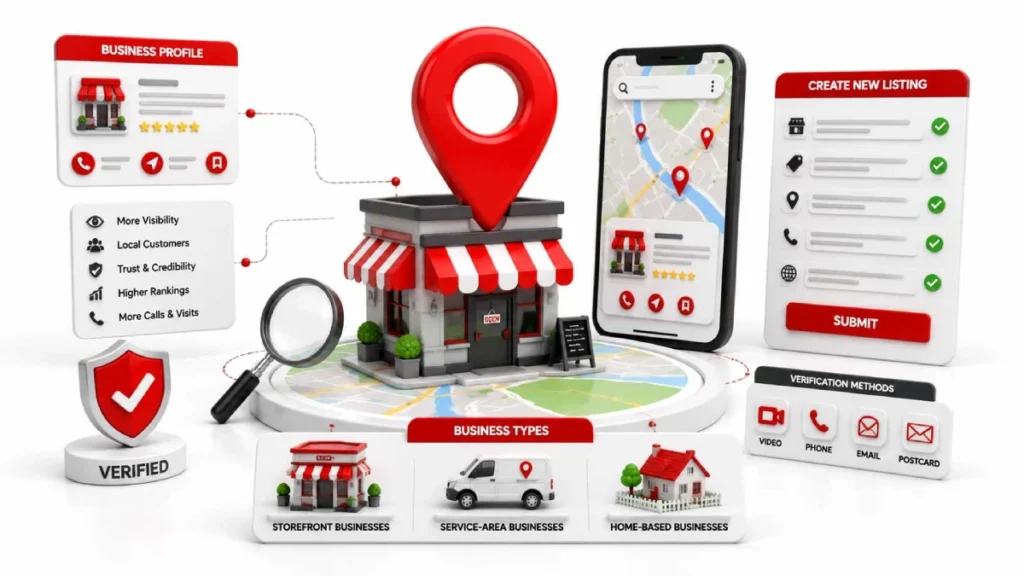
Local customers search on Google Maps first. Google reports that 46% of all searches have local intent. People look for cafes, salons, and repair services right before they visit or buy.
Speed matters too. Google found that 76% of nearby searchers visit a business within 24 hours. If your business is missing, those buyers pick a competitor. They call, get directions, and book without seeing your name.
Trust is the third factor. A verified listing with photos, reviews, and correct hours makes your business look real. It can also place you in the local pack, the top three map results. That spot wins clicks before anyone scrolls down.
What You Need Before Adding Your Business
You need consistent details and proof that your business is real. Google’s spam filters check your listing against public records, directories, and your website. Any mismatch can get your profile suspended.
The golden rule is NAP consistency. Your Name, Address, and Phone number must match everywhere, character for character. Keep five things ready: your official business name, a full street address, a direct local phone number, your website URL, and proof papers like a license or utility bill.
One more tip saves trouble later. Do not stuff extra keywords or city names into your business name, like “Ali’s Auto Care Best Mechanic Lahore.” Google treats this as a violation, and it is one of the top reasons new listings get suspended.
Step-by-Step Guide to Adding Your Business to Google Maps
The process takes seven steps and about 15 minutes. You enter details through Google Business Profile. Google then shows them on Maps and Search.
Sign In or Create a Google Account
Go to business.google.com and sign in using your Google account. If you do not have one, creating it takes two minutes.Here’s a helpful tip to make the process easier. Use a business email on your own domain, like admin@yourshop.com, instead of a personal Gmail. It looks more legitimate to Google and keeps your work separate.
Search for Your Business on Google
Before creating anything new, search for your business name and city. Google often builds basic listings on its own, using public records, directories, and customer edits.
If your business already appears, claim that listing instead of making a fresh one. A duplicate profile splits your reviews and can trigger a suspension. If nothing shows up, move to the next step.
Create a New Listing If Your Business Doesn’t Exist
Click “Add your business to Google.” A short form opens for your core details. Take your time here. This information becomes your official record on Google Maps.
Enter Your Business Name and Category
Type your business name exactly as it appears on your signboard and legal papers. Do not add slogans, keywords, or city names. Next, pick your primary category from more than 4,000 options. Choose the most specific one, like “North Indian Restaurant” instead of just “Restaurant.” This single choice is one of the strongest local ranking factors.
Add Your Business Location or Service Area
If customers visit you, enter your full street address with suite or unit numbers. Shops like stores, salons, and clinics fall in this group. If you travel to customers instead, hide your address and set a service area. Businesses like plumbers, cleaners, and electricians can list up to 20 cities or zip codes they cover.
Add Your Contact Details
Enter a direct local phone number that you personally control. Shared lines and premium-rate numbers break Google’s rules. Also add your website if you have one. Google allows listings without a site, but a working website builds trust and improves your local rankings over time.
Review Your Information and Finish Setup
Check every field one last time before you submit. Even a small typo in your name, address, or phone number can delay approval. Once you submit, your details lock in as the baseline for verification. That means fixing errors now is far easier than fixing them after Google reviews your profile.
How to Verify Your Business on Google
Verification proves your business exists at the location you entered. Your listing stays hidden from Google Maps until this step is done. Google picks the method for you. It looks at your category, location, and account history. You cannot choose it yourself.
Video verification is now the default for most new listings. Review takes 3 to 5 business days. You record one continuous, unedited video. Start outside with your signboard and building number. Film yourself unlocking the door. Then show your workspace, tools, and stock. Phone codes, email codes, and postcards appear for some businesses only.
One warning saves you weeks. Do not edit your name, address, or category during verification. Any change can cancel the process and restart it.
One warning saves you weeks. Do not edit your name, address, or category while verification is pending. Any change can cancel the process and send you back to the start.
How to Add Different Business Types
Google Maps handles businesses in three ways, based on where you serve customers. Rules change for each type. The wrong choice can hide your listing or get it suspended.
Physical Storefront Businesses
Shops, restaurants, and salons must show their full address in public. Google requires permanent signage with your business name, not paper flyers. Your store should stay staffed during listed hours.
Service-Area Businesses
Plumbers, electricians, and mobile groomers must hide their address. You list the areas you cover instead, up to 20 cities or zip codes. For video verification, show branded vehicles, trade tools, and registration papers.
Home-Based Businesses
Yes, you can add a home business to Google Maps. If customers do not walk in, set it up as a service-area business and hide your address. For verification, film your workspace, business cards, and a computer logged into your booking system.
How to Optimize Your Listing After Going Live
Optimization means filling every field so Google shows your profile for more searches. An empty listing rarely ranks well. Complete profiles earn more calls, clicks, and direction requests.
Set Your Business Hours
Correct hours are a real ranking factor. Whitespark’s study places “business is open at time of search” in the top five signals. Update hours weekly and set special hours for holidays like Eid and Christmas.
Add Your Services
List every service you offer.Keep this helpful tip in mind as you begin. Services like AC repair, deep cleaning, and emergency callouts help Google match you to searches. Write a short, keyword-rich line for each.
Write a Compelling Business Description
You get 750 characters to explain your business. Keep it factual. Mention your main services and nearby landmarks. Google bans prices, discounts, and links in this field.
Upload High-Quality Photos
Photos build trust faster than text. Upload at least 15 real images: exterior, interior, staff, and products. Skip stock photos. Google detects them and may flag your listing.
Turn On Messaging and Booking Features
Messaging lets customers text you from your listing. Booking tools like Reserve with Google connect apps such as Square Appointments and Acuity. Both turn viewers into customers without a website visit.
Share Updates with Google Posts
Google Posts help you keep your Business Profile fresh with regular updates. Share offers, events, and new arrivals every 7 to 14 days.Posting regularly shows Google that your business is active, which can help improve your visibility on Google Maps.
How to Collect and Respond to Customer Reviews
Ask customers for reviews after service, and reply to every one. Reviews carry about 20% of local ranking weight, per industry studies. Fresh reviews mean better visibility and more trust.
The safe method is simple.Send a follow-up email or text message with a direct link to leave a review. Let customers write on their own device and time.Thank satisfied customers and address negative feedback with helpful solutions.
Google’s rules are strict now. Do not offer rewards like discounts, gifts, or points for reviews. Avoid using in-store tablets, pressuring customers for reviews, or preventing unhappy customers from leaving feedback.
How to Improve Your Local Search Rankings
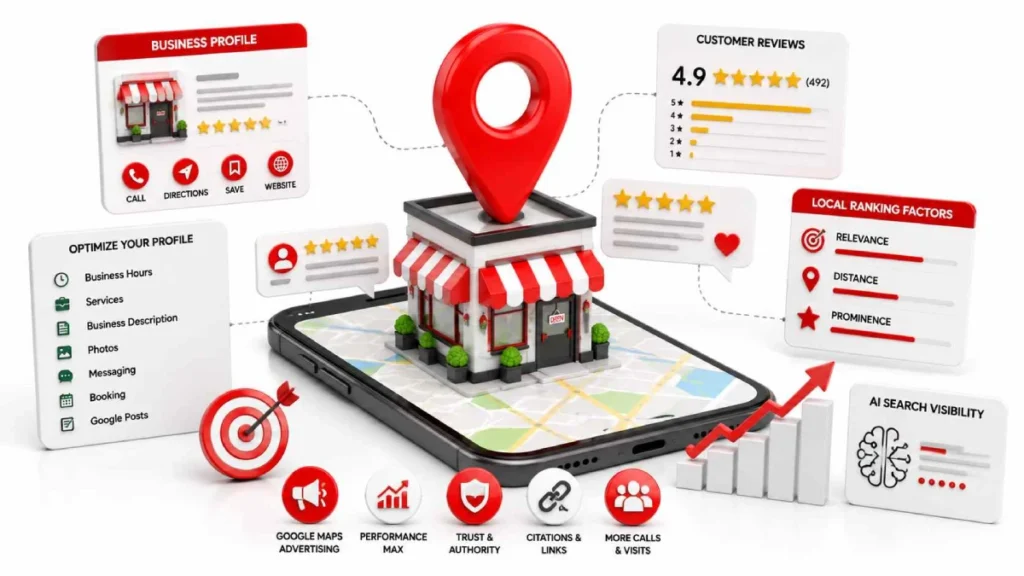
Three main factors influence local rankings on Google: relevance, distance, and prominence. Relevance reflects how well your business aligns with a customer’s search query. Distance is how close you are. Prominence is your reputation from reviews, links, and mentions.
You cannot control distance, but you can improve the rest. Pick the most specific category. Fill your services section. Collect steady reviews. Keep your NAP consistent. Earn local backlinks from blogs and trade directories.
One newer factor deserves attention. AI tools like Google AI Overviews, Gemini, and ChatGPT now suggest local businesses too. These systems check many sources before trusting you. Consistent details and “best of” list mentions raise your chances in AI answers, not just on Google Maps.
How to Advertise Your Business on Google Maps
Link your Business Profile to a Google Ads account to run ads. Paid ads place your listing above organic results with a “Sponsored” label. Ads now run through Performance Max with the “local store visits and promotions” goal.
Setup needs creative assets: up to 15 headlines, 5 descriptions, and 20 images. Add your own video too, since auto-made slideshows convert poorly. Your ads then appear across Search, YouTube, Gmail, and Maps.
One honest note. Ads cannot buy your organic map ranking. That stays earned through reviews, categories, and consistency. Run ads after your profile is complete and verified.
FAQS
Is it free to add my business to Google Maps?
Yes, adding your business to Google Maps is completely free. Google Business Profile costs nothing to create, verify, or manage.
What is the difference between Google Maps and Google Business Profile?
Google Business Profile is the tool, and Google Maps is where your listing appears. You manage your details through the profile dashboard, and Google displays them across Maps and Search.
Do I need a website to be on Google Maps?
No, you don’t need a website to list your business on Google Maps. However, adding one improves trust and strengthens your local rankings.
What happens if I do not verify my business?
Your business stays invisible on Google Maps until verification is complete. Unverified profiles cannot respond to reviews, post updates, or appear in local results.
Can I add my business without a physical shop?
Yes, you can list a business without a shop as a service-area business. Hide your address during setup and list up to 20 cities or zip codes you serve.
How do I claim a business that already exists on Google Maps?
Search for your business, open the listing, and click “Claim this business.” If someone else owns it, submit an ownership request, and they have 3 days to respond.
Conclusion
Getting your business on Google Maps comes down to a few clear moves. Set up your free Google Business Profile, enter accurate details that match your real records, and pass verification, which now usually means a short video walkthrough.
The work does not stop once you go live. Complete every field, add real photos, keep your hours current, and collect honest reviews the safe way. Those steps decide how high you rank in local results and even in AI-powered answers.
Your next customer is searching right now, so set up your profile today at business.google.com and make sure they find you first.
28 July 2026
Google Local Finder vs Google Maps: What’s the...

28 July 2026