

Almost 97% of people search online to find a local business before visiting it in person. Yet millions of small businesses have no presence on Google at all. Every day, those businesses lose customers to competitors who do show up.
Most business owners think a website or Facebook page is enough. But neither of those puts you on Google Maps or in local search results. That is exactly where customers make buying decisions.
Google gives every business a free tool to fix this. Google refers to it as a Google Business Profile. This guide shows you how to create google business profile, verify it, and complete it the right way so customers can find you fast.
What Is Google Business Profile?
Google offers Google Business Profile as a free tool. It controls how your business appears on Google Search and Google Maps. Think of it as your digital storefront on Google.
It shows your business name, address, phone number, hours, photos, and reviews. Customers can call you, get directions, or check your services without ever leaving Google.
Google treats your profile like a living record. It checks whether your information is accurate, fresh, and active. The more complete your profile is, the more Google trusts it and shows it to customers.
What Happened to Google My Business?
In 2021, Google renamed Google My Business to Google Business Profile. The name changed but the tool stayed the same. If you used Google My Business before, you already know how this works.
The biggest change is how you manage it. Before, you had to log into a separate dashboard. Now you manage everything directly inside Google Search and the Google Maps app. This change supports zero-click search. Zero-click search means customers get your address, hours, or phone number directly on Google.They do not need to visit your website at all.
Where Does Your Profile Show Up on Google?
Your profile can appear in 4 places on Google. Each one reaches customers at a different stage of their search. Google Business Profile appears in 4 key placements that boost visibility, trust, and conversions.
1. Local 3-Pack:
Shows top 3 businesses for local searches like “cafes near me” or “electricians in Lahore.”.” It captures around 30%–50% of clicks on local search results.
2. Google Maps:
Shows locations, directions, and reviews for nearby searches like gyms, salons, and clinics.
3.Knowledge Panel:
Appears in branded searches with photos, hours, and contact details. It can increase click-through rates on branded queries by 30–40%.
4. AI Overviews:
Provides quick summaries of business info for searches like “best dental clinic nearby.” AI Overviews now appear in 40%+ of some local queries (in specific industries).
Why a Google Business Profile Matters for Small Businesses
Most customers search Google before visiting any business. If your business does not appear, those customers go to a competitor. It is that simple.
Research shows that complete Google Business Profiles increase the likelihood of people considering businesses reputable by 2.7 times, including clinics, law firms, and retail stores. This applies to all business types including clinics, law firms, restaurants, and retail stores.
Around 99% of consumers search online for local businesses, making this profile a primary discovery channel. Your profile also drives direct actions. Customers can call you, request directions, or check your hours without visiting your website. Every one of those actions is a potential sale.
Is Google Business Profile Free?
Yes. Google Business Profile is completely free for every business. There are no listing fees, no monthly charges, and no hidden costs. Businesses like salons, repair shops, and restaurants all use it at zero cost.
The only real investment is your time. You need to keep your photos updated, respond to reviews, and post weekly updates. Paid options like Google Ads exist but they are completely optional.
Do You Actually Have to Have One?
You do not have to create one. But not having one comes with serious consequences.Google can create a google my business listing for your business automatically. It pulls data from directories, websites, and user suggestions. These auto-created listings often have wrong phone numbers, old hours, or missing details.
Research shows 62% of consumers lose trust when they find incorrect business information online. A listing with bad data is worse than having no listing at all. Claiming and managing your own profile keeps you in control.
How It Helps Customers Find You in Local Search
Google Business Profile helps customers find your business using 3 ranking factors: relevance, distance, and prominence.
- Relevance: Matches your services to searches like “car repair,” “dental clinic,” and “home cleaning.”
- Distance: Uses location data to show nearby businesses based on address or service area.
- Prominence: Measures authority through signals like reviews, photos, and activity.
Profiles with accurate categories, consistent details, and active engagement rank higher. This increases visibility and drives measurable actions like calls, clicks, and direction requests.
What to Prepare Before You Start
Preparation is the most important step before you begin. Most people get stuck during setup because they are missing basic information. Spending 10 minutes gathering everything now saves hours of delays later.
Business Information You Will Need
You need 5 core data elements to create a business profile that is complete and verifiable on Google.
- Business name, address, and phone number (NAP): Must match exactly across platforms like websites, directories, and social media pages.
- Primary business category: Defines your visibility for searches like “family lawyer,” “dental clinic,” and “car repair.”
- Business hours: Include regular hours, holiday hours, and special hours for accuracy.
- Digital assets: Add logo, cover photo, and real images like storefront, team, and services.
- Business description and services: Describe offerings with examples such as plumbing repair, AC installation, and home cleaning.
Accurate NAP consistency improves trust signals and ranking performance in Google Search and Google Maps.
Check If Your Business Is Already Listed on Google
You must check existing listings before creating a new profile to avoid duplicates and ranking issues. Search your business name and address on Google Maps. Duplicate listings split ranking signals like reviews, clicks, and engagement. This reduces visibility and can trigger suspension.
If your business already exists, claim the listing instead of creating a new one. This keeps all authority signals like reviews, photos, and interactions in one profile.
How to Set Up Your Google Business Profile Step by Step
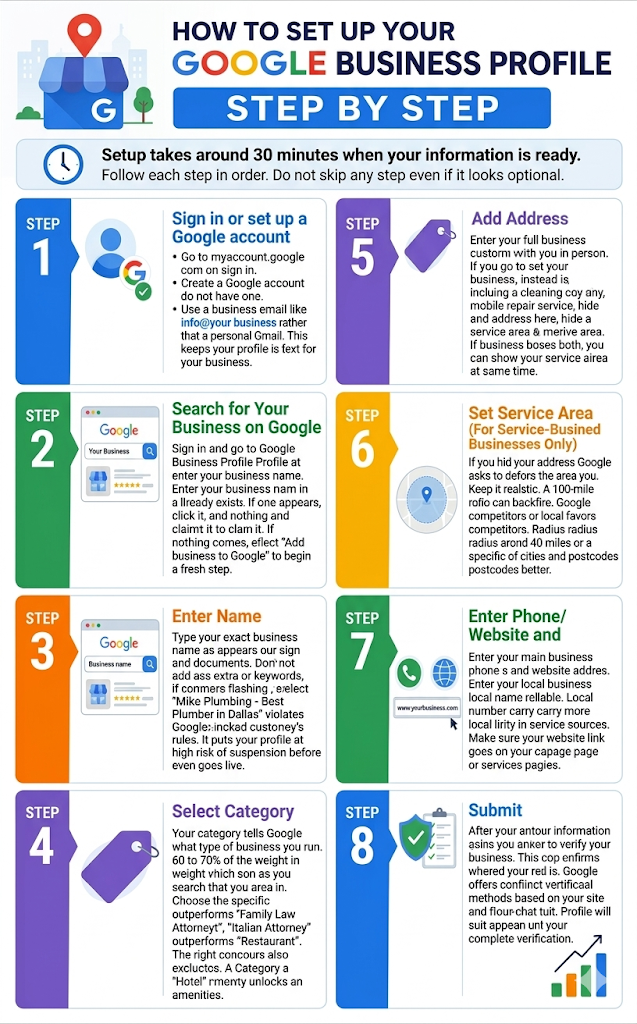
Setup takes around 30 minutes when your information is ready. Follow each step in order. Do not skip any step even if it looks optional.
Step 1 — Sign in or Set Up a Google Account
To set up a business on Google, go to myaccount.google.com and sign in. Create a Google account first if you do not have one. Use a business email like info@yourbusiness.com rather than a personal Gmail. Setting up a google business account with a business email keeps your profile tied to your business, not to you personally.
Step 2 — Search for Your Business on Google
Sign in and go to Google Business Setup at business.google.com. Enter your business name in the search bar. Google checks whether a listing already exists. If one appears, click it and claim it. If nothing comes up, select “Add your business to Google” to begin a creating a google business profile from scratch.
Step 3 — Enter Your Business Name
Type your exact business name as it appears on your sign and legal documents. Do not add extra words or keywords. Writing “Mike’s Plumbing — Best Plumber in Dallas” violates Google’s rules. It puts your profile at high risk of suspension before it even goes live.
Step 4 — Select your main business category
Your category tells Google what type of business you run. It carries 60 to 70% of the weight in deciding which searches you appear in. Choose the most specific option available. “Family Law Attorney” outperforms “Lawyer.” “Italian Restaurant” outperforms “Restaurant.” The right category also unlocks extra features. A “Restaurant” category unlocks a menu button. A “Hotel” category unlocks an amenities list.
Step 5 — Add Your Business Address
Enter your full street address if customers visit you in person. If you go to your customers instead, like a cleaning company or mobile repair service, hide your address and set a service area. If your business does both, you can show your address and set a service area at the same time.
Step 6 — Set a Service Area (For Service-Based Businesses Only)
If you hid your address, Google asks you to define the area you serve. Keep it realistic. A 100-mile radius can backfire. Google favors closer competitors with stronger local signals. A focused radius of around 40 miles or a specific list of cities and postcodes works better.
Step 7 — Enter your phone number and website
Enter your main business phone number and website address. Use a local number where possible. Local numbers carry more authority than toll-free 1-800 lines in competitive local searches. Make sure your website link goes to a useful page like your homepage, contact page, or services overview.
Step 8 — Submit Your Profile for Verification
After you enter your information, Google asks you to verify your business.. This step confirms your business is real and located where you say it is. Google offers different verification methods based on your business type. Choose the one that suits your situation and complete it. Your profile will not appear on Google until you complete verification.
How to Verify Your Google Business Profile
Verification is what makes your profile visible on Google. Without it, your profile exists in the system but does not appear in Search or Maps. Google offers 5 verification methods and chooses which ones to show you based on your business type and location.
Postcard Verification
Postcard verification is the most common method for new businesses. Google mails a card with a 5-digit code to your business address. It arrives within 14 days.
When it arrives, log in at business.google.com and enter the code. Your profile goes live straight away. Do not request a new postcard before 14 days have passed. Requesting a second card cancels the first code and restarts the clock. This is how many business owners get stuck in a loop of expired codes.
One Warning: If your business is in a shared office or lacks clear signage, the postal service may return the postcard. Make sure your address is clearly marked before choosing this method.
Phone or Text Verification
This is the fastest method when Google offers it. Google calls or texts your business number with a short code. Enter it immediately, and Google verifies your profile within minutes.
This option is only available to businesses Google already has data on. This includes businesses with an active website or existing directory listings. If your phone has an automated menu system, the Google call will fail. Make sure a real person can answer the call or your number can receive a plain text.
Email Verification
Email verification sends a code or a clickable link to your inbox.Click the link or enter the code to verify your profile with Google.This option is rarely available to brand new businesses.
Google usually offers it when your email uses the same domain as your website, for example contact@yourbusinessname.com. If your account uses a personal Gmail with no matching website, this option likely will not appear.
Video Verification
Video verification is now the default method for most new listings.Google asks you to record one continuous unedited video proving your business is real and operating at your address. The video must show 3 things.
First, your location, meaning your building exterior, street sign, and building number. Second, your workspace or equipment, meaning your interior, branded vehicles, or tools specific to your trade. Third, proof of management means you unlock the front door, log into your till system, or enter a staff-only area.
Record it in one smooth take. Any cuts or edits cause automatic rejection. A 3 to 5 minute walk-through covering all 3 points is all you need.
Instant Verification
Instant verification needs no code, postcard, or video. It is available to businesses that have already verified their website through Google Search Console.Google Search Console is a free tool used to verify ownership of your website. When Google sees the same business owns both a verified website and a new Business Profile, it verifies the profile automatically.
If you have not set up Google Search Console yet, go to search.google.com/search-console and complete your website verification first.Then go back to complete your Business Profile setup.
What to Do If Your Postcard Never Arrives
Wait the full 14 days before doing anything. Acting too early cancels the original code and restarts the wait. After 14 days, log back in and check your address. A missing unit number, wrong postcode, or misspelled street is enough to cause a failed delivery. If the address is correct, request a second postcard from your dashboard.
If the second postcard also fails, contact the Google Business Profile Help Centre directly. In genuine cases Google may offer a live video call with a support agent who verifies your business in real time.
What to Do If You Have No Verification Option Available
If no verification method appears, Google has flagged your listing as high risk. This usually happens when you list a home address as a commercial location, add keywords to your business name, or match details with a previously suspended listing nearby.
File a manual appeal through the Google Business Profile Appeals Tool inside your dashboard Help section. Attach supporting documents that prove your business is real. The strongest documents are a current business licence, a utility bill showing your business name and address, and a tax registration certificate. Providing all 3 speeds up the review.
Do not create a second profile while waiting. This can lead to permanent suspension of both profiles.. Submit one appeal, attach your documents, and wait up to 7 business days for a response.
How to Complete Your Google Business Profile the Right Way
Verification is just the beginning. A verified but incomplete profile will not perform well. Completing every section tells Google and customers exactly what your business offers.
Write a Business Description That Actually Helps
Write a clear description that explains what your business does and who it serves. Mention specific services like plumbing repair, dental care, or home cleaning. The first 150 characters are the most important as they appear in search previews. Avoid promotional phrases like “best deals” or “cheapest prices” as these can lower your profile visibility.
Add Photos That Build Trust
Add real photos of your business. Add storefront images, team photos, and work samples. Examples include repairs, consultations, or products. Profiles with real photos get more clicks and direction requests. Aim for at least 10 photos when you first set up. Keep adding new ones on a regular basis. Use JPG or PNG format, at least 720×720 pixels, and between 10KB and 5MB in file size.
Set Your Business Hours Correctly
Add correct operating hours for each day of the week. Mark closed days as closed. Update your hours ahead of public holidays and temporary closures.Incorrect hours are a major reason customers leave negative reviews. Keeping this accurate takes two minutes and prevents lost visits.
List Your Products or Services
Add every service or product your business offers. Use specific names like AC repair, dental cleaning, or legal consultation. Add a short description and a price where possible. This helps Google match your profile to more specific customer searches like “boiler repair near me” or “family dentist in Austin.”
Take Control of Your Q&A Section Early
The Q&A section allows anyone to ask questions about your business. Anyone can also answer them, including people who have never visited you. Left unmanaged, this section can contain inaccurate or misleading information.
Add your own questions and answer them from your business account. Cover common topics like payment methods, parking, service areas, and opening times. These answers often appear in AI Overviews and voice search results, giving your profile extra visibility.
How to Manage and Grow Your Profile Over Time
Setting up your profile is not a one-time task. Profiles that are updated on a regular basis perform better in local search. Google favours businesses that show consistent activity over those that set up and never return.
How to Use the Google Business Profile Dashboard
Search “my business” on Google while logged into your account to access your dashboard. From here you can edit your information, respond to reviews, publish posts, and view your performance data. Check your dashboard at least once a week. Look for new reviews, unanswered questions, and any suggested edits from Google.
How to Use Google Posts to Stay Visible
Google Posts are brief updates shown on your profile in Search and Maps. They expire after 7 days so you need to post at least once a week to stay active. Use Offer Posts for promotions and deals with a “Get Offer” or “Book Now” button. Use What’s New posts for updates, awards, or seasonal announcements. Even a simple 2 to 3 sentence update with a photo is enough to keep your profile active.
How to Respond to Reviews the Right Way
Reviews are one of the strongest local ranking signals Google uses. Respond to every review, both positive and negative.For positive reviews, address the customer by name and refer to the exact service they used. For negative reviews, respond within 24 to 48 hours. Acknowledge the issue calmly, avoid being defensive, and offer to resolve it offline. Research shows 89% of consumers prefer businesses that respond to all reviews.
How to Use Profile Insights to Track Performance
Google gives you free performance data inside your dashboard. Check it at least once a month. Look at discovery searches, which show how many people found you by searching a category like “bakery near me.” Check direct searches to see how many people searched for your business name. Track actions including direction requests, website clicks, and phone calls. Use this data to improve your description, posts, and services to attract more of the right customers.
Common Google Business Profile Mistakes to Avoid
Small mistakes in your profile can cost you visibility, rankings, and customers. These are the 5 most damaging mistakes business owners make.
Using Keywords in Your Business Name
Do not add keywords to your business name. Words like “best,” “cheap,” or “top rated” in your business name violate Google’s guidelines. “Ali Plumbing” is acceptable. “Best Emergency Plumbing Ali Lahore” is not. This is the number one reason Google suspends profiles in 2026.
Choosing the Wrong Business Category
Do not pick a broad or incorrect category. Your primary category determines 60 to 70% of which searches you appear in. Choose something specific. “Dental Clinic” outperforms “Health.” “Car Repair Shop” outperforms “Automotive.” Follow the 1–3 rule: use one specific primary category and up to two closely related secondary categories.
Leaving Your Profile Incomplete
Do not leave any fields empty. Missing hours, photos, services, or contact details signal neglect to Google. Google prioritises complete profiles because they give customers a better experience. An incomplete profile almost always loses to a complete competitor profile in local rankings.
Ignoring Reviews and Q&A
Do not ignore customer reviews or unanswered questions. Both affect your trust signals and conversion rate. Research shows 89% of consumers are more likely to choose a business that responds to all reviews. Unanswered questions in your Q&A section reduce conversions because customers cannot get the information they need.
Not Updating Your Profile Regularly
Do not let your profile go inactive. Google rewards consistent activity. Posts expire after 7 days. Hours change for holidays. Services get added or removed. A profile that is not updated loses ground to active competitors who are using every available feature including messaging, Q&A, and new post types.
What to Do in the First 30 Days After Your Profile Goes Live
The first 30 days set the foundation for your profile’s long-term performance. Google evaluates new profiles based on early activity, completeness, and consistency.. Strong signals in the first month lead to better rankings over time.
Ask Your First Customers for a Review
Start collecting reviews immediately after your first completed services. Send a direct link to your review section by message or email. Target 1 to 2 reviews per day in the first month to build a steady review velocity. Early reviews from real customers build trust fast. They come from restaurant guests, clinic patients, and service clients. These reviews also improve your local ranking signals.
Publish Your First Google Post
Publish your first post within the first 7 days. Use it to introduce your business or share a welcome offer. Keep it short, clear, and include a real photo. A 30-second video walkthrough shows your location. It builds trust with Google and new customers.
Complete Your Photos and Q&A
By day 30 your profile should have at least 50 photos. Include storefront images, team photos, and examples of your work. Add GPS location data to your photos if possible. Geotagged photos strengthen your distance ranking signal. They help Google confirm your exact business location.
Also, add 10–15 common questions with clear answers to your Q&A section before customers begin submitting questions. Cover topics like pricing, availability, parking, and service areas.
Check Your Insights After Two Weeks
After 14 days you will have enough data to see how customers are finding your profile. Check if customers find you through discovery searches like “plumber near me.” Also check direct searches for your business name. If your profile shows in irrelevant searches, update your services and business description. Match them with what you actually offer.
FAQs
What is a Google Business Profile?
A Google Business Profile is a free listing on Google Search and Google Maps that shows your business details and allows customers to contact you.
How long does it take to create GBP?
The setup process takes around 30 minutes when your information is ready. Verification can take anywhere from a few minutes with instant or phone verification to up to 14 days with postcard verification
How do I register for Google Business or sign up for a Google Business Profile?
Go to business.google.com, sign in with your Google account, enter your business details, and follow the steps to set up and verify your profile. The entire google my business signup process takes around 30 minutes.
Why is Google Business Profile important for local businesses?
It helps your business appear in local searches on Google Search and Maps. It can bring calls, directions, and website visits.
What happens after I verify my Google Business Profile?
Your profile can appear publicly on Google Search and Maps. You can manage details, reviews, photos, and updates.
What are common mistakes in Google Business Profile setup?
Common mistakes include wrong categories, incomplete details, and keyword stuffing. Ignoring reviews, outdated hours, and no updates also hurt performance.
How do I create a google my business account or create a google my business page?
Go to business.google.com and sign in. Enter your business name, select your category, add your address or service area, and complete verification. This is how to create a google business page from start to finish.
Conclusion
A Google Business Profile controls how your business shows on Google Search, Google Maps, the Knowledge Panel, and AI Overviews. A complete and verified profile builds trust with reviews, photos, correct hours, and clear services. If you do not update it, your business falls behind competitors.
Wrong categories, missing details, and ignored reviews lower your rankings and cost you customers. Creating a google business profile and keeping it active is the single most important free step any local business can take. Claim your profile, verify it, complete every section, and keep it active. Customers are already searching for the services you offer. Make sure they can find you.

8 June 2026