


Nearly 46% of all searches on Google are focused on finding local information. Yet most local business websites are invisible in those results not because of weak SEO, but because search engines cannot read their business details properly. Local business schema markup fixes that.
Without schema, Google has to guess what your business is, where it is, and when it is open. That means no star ratings, no business hours, and no location details in search results. Your competitors who have schema are getting those features. You are getting a plain blue link.
This guide covers everything from picking the right schema type to adding the code, testing it, and fixing common mistakes. No coding experience needed.
What Is Local Business Schema Markup?
Local business schema markup is structured code added to your website that tells search engines exactly what your business is, where it is, and how customers can reach it.
It uses a vocabulary from Schema.org, built by Google, Microsoft, Yahoo, and Yandex. Instead of Google guessing that “123 Main Street” is an address, the schema confirms it as a real street address tied to a real business. It works for businesses with a physical location or service area, including dental clinics, law firms, and plumbing companies.
Schema markup is not a ranking signal.However, it makes your business eligible for rich results listings that show star ratings, opening hours, and phone numbers before anyone clicks. According to Backlinko, the top organic result gets a 27.6% click-through rate. A rich result puts your listing at that level of visibility.
Why Local Businesses Need Schema Markup
Local businesses need schema markup to show up in search features like Google’s Local Pack, Knowledge Panel, and rich results that standard pages cannot access without structured data.
According to BrightLocal, 98% of consumers used the internet to find local business information in 2023. Schema affects how your business appears across 4 key areas:
- Google Local Pack and Maps. Schema confirms your location, phone number, and hours, linking your website to your Google Business Profile.
- Knowledge Panel. The info box on the right side of desktop results pulls from verified structured data. Complete schema helps your business trigger this panel.
- Voice Search and AI Assistants. Google Assistant, Siri, and Alexa pull answers from structured data, not paragraphs of text. Schema fields like openingHoursSpecification and areaServed supply those answers.
- AI Overviews. Google’s AI search summaries use structured business data to build local recommendations. Businesses without schema are harder to reference.
Schema is a visibility tool, not a ranking fix. However, It helps a solid website stand out. It does not fix weak content or low domain authority.
Choose the Right Schema Format (JSON-LD, Microdata, or RDFa)
There are 3 ways to add schema markup: JSON-LD, Microdata, and RDFa. Google recommends JSON-LD for all structured data.
- JSON-LD runs inside a single <script> block in the <head> or <body> of your page. It stays separate from your visible HTML. You can update or remove it without touching the page layout. It is the easiest to use and the format Google prefers.
- Microdata embeds data inside your visible HTML using inline tags. A small layout change can break it. It is hard to maintain at scale.
- RDFa uses XML and HTML5 attributes. It works across different platforms but adds code clutter and is complex to set up.
All examples in this guide use JSON-LD. It is the best choice for small business owners and SEO practitioners.
Pick the Right LocalBusiness Schema Type for Your Business
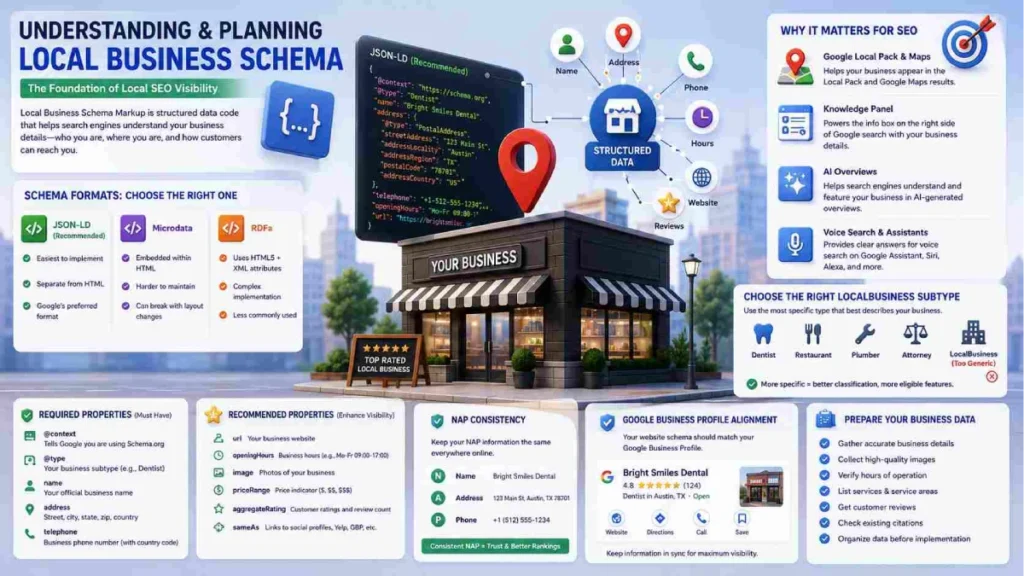
Using the generic LocalBusiness type when a specific subtype exists is one of the most common mistakes. Schema.org lists over 100 subtypes by industry. Always use the most specific one that fits.
A dental clinic marked as Dentist gets the right classification with industry-specific properties. The same clinic marked as LocalBusiness stays vague to Google. Use Restaurant or CafeOrCoffeeShop for food businesses, Plumber or Electrician for home services, and Attorney for legal practices. If no exact subtype exists, move one level up. A tattoo studio fits under HealthAndBeautyBusiness.
LocalBusiness and Organization are not the same. Furthermore,Organization is for brands with no physical customer-facing location. LocalBusiness is for branches or service providers customers visit or book. Use Organization on your homepage and separate LocalBusiness entries on each location page.
Required and Recommended Properties You Need to Know
Google divides LocalBusiness schema into required and recommended properties. Required ones must be present or your schema will show a validation error. Morever,Recommended ones affect how detailed your listing looks in search results.
The 5 required properties:
- @context — Tells Google you are using the Schema.org vocabulary
- @type — Your business subtype like Dentist, Restaurant, or Plumber
- name — The registered name of your business
- address — A PostalAddress object with street, city, state, and zip code
- telephone — Your business phone number with country code
Recommended properties:
- url — The page URL for your business location
- openingHours — Weekly hours in 24-hour time like “Mo-Fr 09:00-17:00”
- image — Storefront photos in 3 ratios: 16×9, 4×3, and 1×1
- priceRange — A price indicator like “$” or “$$$”
- description — A short summary of your services
- geo — Coordinates to at least 5 decimal places
- sameAs — Links to profiles like Yelp, Facebook, and Google Business Profile
Two properties require special attention: the aggregateRating property displays star ratings, but it should only be used for reviews from independent platforms such as Google or Yelp. Using it for reviews you control can trigger a manual penalty. areaServed tells Google which cities you serve, useful for cleaning services, delivery companies, and mobile contractors. Use specific city names, not vague terms like “greater metro area.”
Before You Write Any Code — Get These Three Things Right
Most schema errors are data errors, not code errors. Get these 3 things right before you start.
1. Lock Down Your NAP Consistency
NAP means Name, Address, and Phone number. Your business details on your website, Google Business Profile, and directories like Yelp, Yellow Pages, and Facebook must match exactly. Even writing “Avenue” in one place and “Ave.” in another can stop Google from connecting the records. Inconsistent NAP data hurts entity trust and local search visibility.
2. Align Your Schema With Your Google Business Profile
Your GBP and schema do different jobs. GBP is Google’s internal record for your business. Schema is the on-page confirmation of those same details. When the two show different hours or a different phone number, Google cannot verify your business. In addition, this hurts your visibility in “open now” searches and map results.
3. Clean and Format Your Data
Use 24-hour time for opening hours, for example “09:00” not “9:00 AM”. GPS coordinates need at least 5 decimal places to avoid map errors. If your business details changed recently, update everything before writing your schema. Outdated data causes the same problems as broken code.
How to Add Local Business Schema Markup (Step by Step)
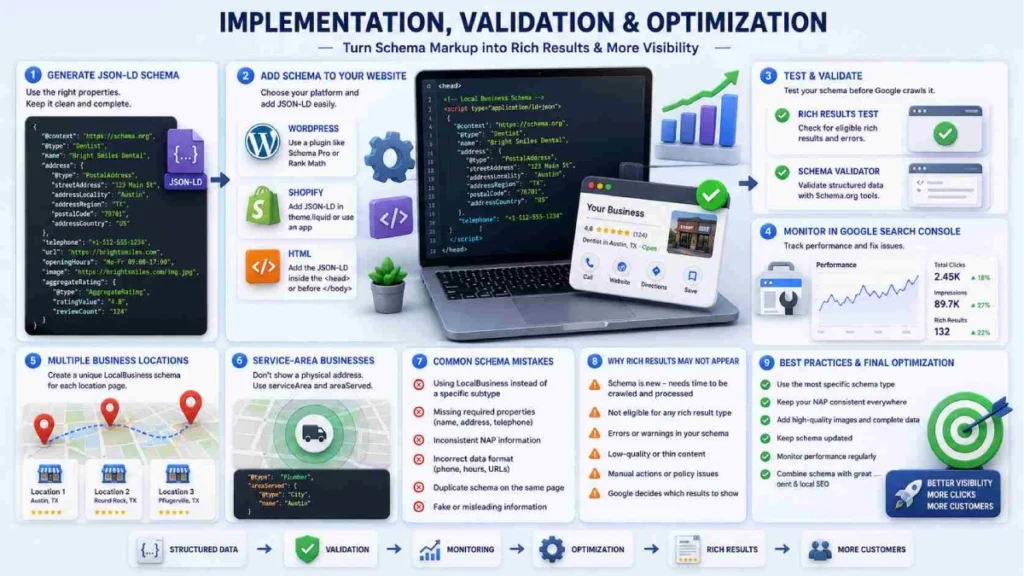
Adding local business schema markup comes down to 4 steps: generate the code, add it to your website, test it, and monitor it in Google Search Console.
Step 1 — Generate Your Schema Code
You have 2 options: use a free generator or write the code manually. Tools like Localo, Google’s Structured Data Markup Helper, and Rank Math work well for single-location businesses. For full control, use this template:
@id creates a unique identifier for your business in Google’s entity graph. Use your URL followed by /#business. Point sameAs to your Facebook page, Yelp listing, and Google Business Profile. Put weekend hours in a separate block if they differ from weekdays.
Step 2 — Add the Code to Your Website
Place the JSON-LD block inside the <head> tag or just before the closing </body> tag.
- WordPress with Rank Math: Go to Rank Math SEO, then Titles and Meta, then Local SEO. For specific pages, open the Schema Generator in the Rank Math metabox and select the Local Business layout.
- WordPress with Yoast: Go to Yoast SEO, then Settings, then Site Representation. The Yoast Local SEO add-on adds hours and coordinates without creating duplicate schema blocks.
- Manual HTML: Open your header.php file and paste the JSON-LD block between the <head> tags.
- Shopify: Go to Online Store, then Themes, then Edit Code. Create a snippet called local-business-schema.liquid, paste your JSON-LD inside it, and add {% render ‘local-business-schema’ %} before the closing </head> tag in layout/theme.liquid.
Step 3 — Test and Validate Your Schema
Test your schema with 2 tools before assuming it works. Use Google’s Rich Results Test at search.google.com/test/rich-results to check if your schema is set up for rich displays. Use the Schema Markup Validator at validator.schema.org to find syntax problems. Fix all errors first, then resolve warnings to get the most out of your listing.
Step 4 — Check Google Search Console
Open GSC, go to Enhancements, and select Local Businesses to see your structured data status. The report shows valid entries, warnings, and broken blocks. High-authority sites can see rich results within hours. Newer sites may wait 1 to 2 weeks. If nothing shows after 2 weeks with a clean schema, the issue is likely page authority, not the code.
How to Add Schema for Multiple Business Locations
Each business location needs its own schema block on its own page. One global schema block across your whole site creates entity confusion and makes it hard for Google to match each branch to the right local search.
- Create a unique page for each location. Each branch needs its own landing page, for example /locations/austin or /locations/dallas. Place that location’s schema block exclusively on its corresponding page. The NAP details in the schema must exactly match the signage, Google Business Profile, and directory listings for that specific branch, not the main business.
- Structure the parent-child relationship using @id. On the homepage, define your primary brand using the Organization type and give it a fixed identifier such as https://example.com/#organization. On each branch page, use the specific business subtype and point back to the parent using parentOrganization.
- Use the branchOf property to link each location back to the primary brand. The branchOf property maps each individual location back to the overarching corporate entity. For larger chains like dental groups, law firms, or restaurant franchises, this multi-node structure gives Google a clear, machine-readable map of your entire business footprint. Each location remains a distinct entity while still being tied to the parent brand.
Schema Markup for Service-Area Businesses (No Physical Address)
Service-area businesses like plumbers, electricians, mobile pet groomers, and cleaning companies need schema too, but the setup differs from a storefront business. Google requires these businesses to hide their address on Maps. Your schema must reflect that. Adding a full address in schema while hiding it on GBP creates a conflict that hurts local visibility.
For the address field, leave out streetAddress. Keep only addressLocality, addressRegion, and postalCode. This shows Google your base area without exposing a private address or conflicting with your GBP.
Use areaServed to show where you work. Skip vague terms like “greater metro area.” List specific cities or regions as structured City or AdministrativeArea objects. The more specific your list, the better Google can match you to local searches in those areas.
Common Mistakes That Break Local Business Schema
Even good schema can fail if the details are off. Here are the most common mistakes to avoid:
- Using the generic LocalBusiness type when a subtype like Dentist, Restaurant, or Plumber exists
- Mismatching NAP data across your schema, website, and Google Business Profile
- Running two SEO plugins like Rank Math and Yoast at the same time, creating duplicate schema blocks
- Not updating the schema after changing business hours, phone numbers, or your address
- Marking up content not visible on the page , this is structured data spam and can lead to a manual Google penalty
- Using self-generated reviews in aggregateRating instead of reviews from platforms like Google or Yelp
- Skipping validation after publishing always test with Google’s Rich Results Test and Schema Markup Validator
- Using vague areaServed values like “North Texas” instead of specific city names
- Writing “9:00 AM” instead of “09:00” for hours, or using coordinates with fewer than 5 decimal places
Why Your Schema Markup Might Not Show Rich Results
Valid schema does not mean rich results will show. Google decides based on user location, device, search history, and query intent. Schema makes your business eligible but it does not force a display.
Here are the most common reasons rich results do not appear:
- Low page or domain authority. Google rarely grants rich features to new or weak websites. Build backlinks and improve site trust over time.
- Hidden content. If hours, prices, or an address in your schema are behind a login or hidden with CSS, Google ignores the markup.
- Review policy violations. Using aggregateRating for reviews you control can trigger a spam penalty and remove rich result access.
- Sparse schema. Missing properties like image, priceRange, or geo reduce what Google can show about your business.
- Fresh deployment. New schema on low-authority sites can take 1 to 2 weeks to process.
If your schema is clean and complete but rich results still do not show after 2 weeks, there are a few things to focus on. Work on building page authority, fix any warnings in Google Search Console, and make sure every schema property matches what is visible on the page.
FAQs
Does local business schema markup directly improve my Google rankings?
Schema markup does not directly improve rankings. It makes your business eligible for rich results like star ratings and business hours that increase visibility in search.
Do I need schema markup if I already have a Google Business Profile?
You need both because they serve different functions. GBP is Google’s internal record for your business while schema is the on-page confirmation of those same details.
Can I use schema markup on Shopify?
Yes, create a custom local-business-schema.liquid snippet and render it before the closing </head> tag in your theme. Use custom metafields to avoid hard-coding business details into the snippet.
What happens if my schema markup has errors?
Errors invalidate your entire schema block and Google will not show rich results from broken code. Fix all errors in Google’s Rich Results Test before publishing.
How much time is needed for schema markup to start appearing as rich results?
High-authority websites can see rich results within hours while newer websites may wait 1 to 2 weeks. If nothing shows after 2 weeks with a clean schema, the issue is likely page authority.
What is the sameAs property and why does it matter?
The sameAs property links your schema to profiles like Yelp, Facebook, and your Google Business Profile. It helps Google connect mentions of your business into one verified entity.
Should service-area businesses include their address in schema markup?
Leave out streetAddress and keep only addressLocality, addressRegion, and postalCode. Adding a full private address while hiding it on GBP creates a conflict that hurts local search visibility.
Conclusion
Local business schema markup is one of the most useful steps a small business can take to improve local search visibility. It tells Google what your business is, where it operates, and when it is open. Those details affect your presence in the Local Pack, Knowledge Panel, voice search, and AI results.
The process is simple. Pick the right schema subtype, add all required and recommended properties, match your data to your Google Business Profile, and validate before publishing. Schema does not promise rich results overnight, but businesses that do it right are better placed than those with a plain blue link.
If you have not added local business schema markup yet, start today. Use a free tool like Localo or Google’s Structured Data Markup Helper, follow the steps above, and test your code before going live. It takes under an hour and the visibility gain is worth it.