


Local Business Schema Types: Complete Reference Guide 46 percent of all Google searches have local intent. Yet most local businesses do not show up in those results. The wrong schema type is usually why.
You added schema markup but nothing changed. Using the generic LocalBusiness type for a Dentist, Plumber, or Restaurant gives Google a weak signal. Google cannot place a business it cannot clearly identify. So it shows your competitor instead.
This guide fixes that. You will learn every major local business schema type, which one fits your business, and how to add it correctly. No coding needed.
Why Is Schema Markup Important for SEO?
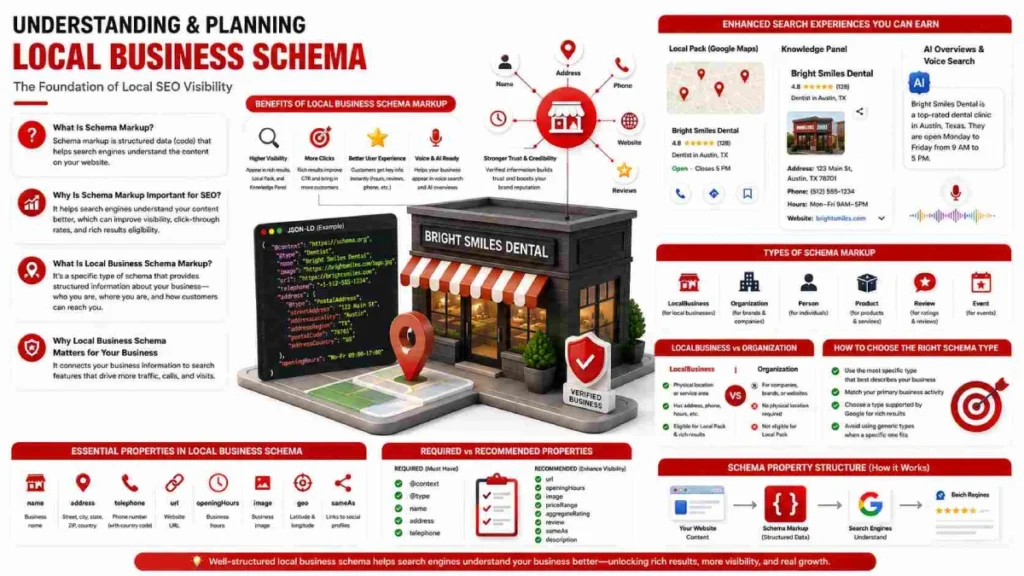
Schema markup turns your website data into visible, clickable information on the search results page. Without schema, Google guesses what your business does. With schema, you tell Google your business name, category, hours, and location. That leads to better search listings and more clicks.
Schema also feeds two growing search surfaces. Google’s AI Overviews and voice assistants like Google Assistant pull business data to answer queries like “best dentist open Saturday near me.” Businesses with clean schema get found. Businesses without it get skipped.
What Is Local Business Schema Markup?
Local business schema markup is code that tells search engines what your business is, where it is, and when it is open.
It is built on the LocalBusiness type from Schema.org. It is a shared vocabulary created by Google, Bing, Microsoft, and Yahoo. It covers your business name, address, phone number, opening hours, and location in a format search engines read clearly.
Unlike broader types like Organization or WebSite, local business schema is built for location-based search. It powers your listing in Google’s local pack, Google Maps, and near-me searches.
Why Local Business Schema Matters for Your Business
Local business schema gives search engines the signals they need to show your business in local results, maps, and AI answers.
Google handles over 8.5 billion searches every day. Many carry local intent. Searches like “plumber near me” and “dentist open Sunday” need structured business data to return the right results. Without schema, Google reads your page text on its own. That is never fully reliable.
Schema affects three key placements: the local pack, Google Maps, and AI Overviews. For small businesses, schema is one of the few SEO tools that costs nothing to add. A Milestone Research study found that sites using structured data got 20 to 30 percent more organic traffic than those without it.
Benefits of Local Business Schema Markup
Local business schema delivers five direct benefits for your search presence.
- Richer search listings. Your listing can show star ratings, hours, price ranges, and phone numbers right on the results page.
- Higher click-through rates. Pages with rich results get 20 to 30 percent more clicks than plain listings according to Search Engine Land.
- Stronger local pack visibility. Schema sends the signals Google uses to pick the top 3 local results.
- Better AI and voice search presence. Google’s AI Overviews and Google Assistant pull schema data to answer queries like “pharmacy open near me.”
- Improved entity recognition. Schema helps Google confirm your business as a real entity. This raises your chances of earning a Google Knowledge Panel.
Types of Schema Markup
Schema.org has over 800 schema types. For local businesses, a small set covers most use cases.
Local Business Schema
LocalBusiness is the base type for all location-based businesses on Schema.org. It covers your business name, address, phone, hours, and location. Every subtype like Restaurant, Dentist, and Attorney builds on LocalBusiness. Use this type only when no specific subtype fits your business.
Plumber Schema
Plumber is a Schema.org type for plumbing businesses. It sits under HomeAndConstructionBusiness, which sits under LocalBusiness. Using Plumber instead of LocalBusiness gives Google a clear category signal. This helps you show up for searches like “emergency plumber near me.”
HVAC Business Schema
HVACBusiness is the right type for heating, cooling, and ventilation companies. Like Plumber, it falls under HomeAndConstructionBusiness. It helps Google match your business to searches like “AC repair near me” and “furnace installation service.”
Organization Schema
Organization is for brands and businesses without a physical location. It covers name, url, logo, sameAs, and contactPoint. It has no address or hours focus. Use it for online businesses, nonprofits, and corporate brands, not for local brick-and-mortar businesses.
Review and Rating Schema
Review and AggregateRating work together to show star ratings in Google search results. AggregateRating shows the overall score from all reviews. Review shows one single review. Adding these to a local business page makes your listing eligible for star displays in search.
Service Schema
Service describes a specific service your business offers, such as “roof inspection,” “teeth whitening,” or “tax filing.” It works with LocalBusiness schema, not instead of it. Adding Service markup to service pages helps Google understand what you offer beyond just your business category.
LocalBusiness vs Organization Schema
Use LocalBusiness when your business has a physical location or serves a specific area. Use Organization when it does not.
LocalBusiness supports address, openingHours, telephone, and geo. These power your local pack, Google Maps, and near-me visibility. Organization suits businesses like online agencies, national charities, and software companies with no storefront.
LocalBusiness is a subtype of Organization in Schema.org. This means it gets all Organization properties like sameAs, logo, and contactPoint built in. You never need both types on one page. If your business has a location, LocalBusiness covers everything.
How to Choose the Right Local Business Schema Type
Choose the most specific schema type that matches what your business does.
Google advises against using the generic LocalBusiness type when a better subtype exists. A dental practice using Dentist will rank better for “dentist near me” than one using LocalBusiness.
Follow these three steps.
Step 1: Identify your main business activity. A car repair shop is AutoRepair. A hair studio is HairSalon. Start with what you do, not your business name.
Step 2: Check for a matching subtype on Schema.org. Go to schema.org/LocalBusiness and look for your type. If Plumber, Optician, or RealEstateAgent fits, use it. Only use LocalBusiness when nothing more specific exists.
Step 3: Match your schema type to your Google Business Profile category. If your GBP says “Dental Clinic,” your schema should say Dentist. This keeps your signals consistent and builds Google’s trust in your data.
A pizza restaurant uses Restaurant. A heating company uses HVACBusiness. A yoga studio uses HealthClub. A tax firm uses AccountingService. If your business covers two categories, you can use two schema types on the same page. Always list your main activity first.
Essential Properties in Local Business Schema
Local business schema has 7 core properties every business must include: name, address, telephone, openingHours, url, image, and @type.
These give Google what it needs to show your business in local search and Google Maps. Your name must match your Google Business Profile exactly. Your address must use the PostalAddress format and match your GBP exactly. Your telephone must include the country code and stay the same across every directory.
Two more properties add real value. The geo property gives your exact map coordinates. The sameAs property links your schema to profiles like Google Business Profile, Yelp, and Facebook. This tells Google all those profiles belong to the same real business and helps you earn a Knowledge Panel.
Required vs Recommended Local Business Schema Properties
Local business schema has 3 required properties and over 15 recommended ones.
Required properties are the minimum Google needs. Missing one means your schema will not qualify for rich results. Recommended properties are optional but they make your listing stronger than competitors who only cover the basics.
Required Properties
These 3 must always be present:
- @type — your schema type such as Restaurant, Dentist, or Plumber
- name — your business name as it appears on your Google Business Profile
- address — your full postal address using the PostalAddress format
Recommended Properties
These add strength to your markup:
- telephone — your phone number with country code
- openingHours — hours in Schema.org format such as Mo-Fr 09:00-17:00
- url — your business location page address
- image — a URL to a clear photo of your business
- priceRange — pricing shown as $, $$, or $$$
- geo — your exact map coordinates
- sameAs — links to Google Business Profile, Yelp, and Facebook
- aggregateRating — your star rating and review count
- description — a short summary of what your business does
- areaServed — the city or zip code your business covers
- hasMap — a link to your Google Maps listing
- paymentAccepted — payment options like cash, card, or PayPal
Businesses with 10 or more properties give Google more data to work with. More data means better entity recognition, stronger local pack chances, and a higher chance of a Knowledge Panel.
Local Business Schema Markup Example (JSON-LD)
Google recommends JSON-LD as the best format for local business schema. It helps search engines read your business name, address, phone number, website, and hours with complete clarity.
Well-structured schema improves your presence in local search, Google Maps, and Knowledge Panels. Use the examples below as a starting point. Replace every placeholder with your own business details.
….
How to Implement Local Business Schema
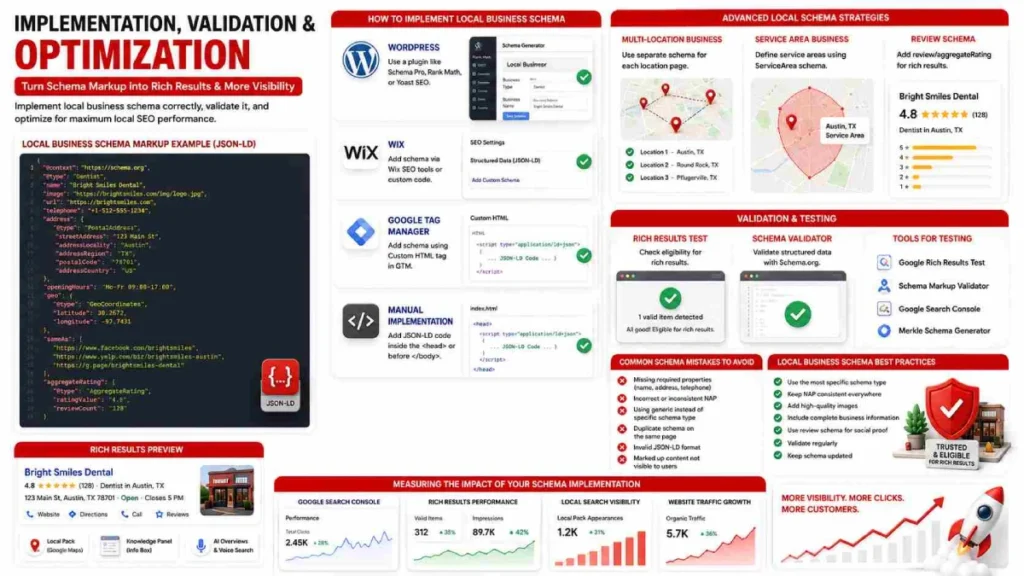
There are 4 ways to add local business schema: manually in your HTML, through a WordPress plugin, through Wix, or using Google Tag Manager.
Each method gives the same result. Your choice depends on your platform and comfort with code. Manual gives full control. Plugins and platform tools are faster with no coding needed.
How to Implement Schema Markup Manually
Manual means writing your JSON-LD and pasting it into your website HTML. This works on any platform.
Step 1: Write your JSON-LD using an example from the previous section. Replace all placeholder details with your real business info.
Step 2: Wrap your code in a script tag:
html
<script type=”application/ld+json”> { your schema code here } </script>
Step 3: Paste the script into the <head> section of your page HTML.
Step 4: Test your markup at search.google.com/test/rich-results before publishing.
Step 5: Publish your page. Then check performance in Google Search Console under Enhancements.
How to Add Local Business Schema in WordPress
WordPress runs over 43 percent of all websites. The easiest way to add schema is through an SEO plugin. The 3 most used options are Rank Math, Yoast SEO, and Schema Pro.
Using Rank Math:
Step 1: Install and activate Rank Math from the WordPress plugin directory.
Step 2: Go to Rank Math then Local SEO in your dashboard.
Step 3: Enter your business type, name, address, phone, hours, and coordinates.
Step 4: Save your settings. Rank Math adds the JSON-LD to your pages automatically.
Step 5: Test your output with Google’s Rich Results Test.
Using Yoast SEO:
Yoast covers basic schema in its free version. For full local schema with hours and multiple locations, you need the paid Yoast Local SEO add-on.
Step 1: Install Yoast SEO. Go to SEO then Search Appearance in your dashboard.
Step 2: Fill in your business name, logo, and social profiles under the Organization tab.
Step 3: Install Yoast Local SEO. Enter your location details and set your opening hours.
Step 4: Test with the Rich Results Test.
How to Implement Schema Markup in Wix
Wix has built-in structured data for some business types. For full control, use the Wix custom code feature.
Step 1: Go to Settings in your Wix dashboard. Click Custom Code under Advanced.
Step 2: Click Add Custom Code. Paste your JSON-LD into the code field.
Step 3: Set placement to Head. Choose all pages or a specific page.
Step 4: Click Apply. Publish your site. Test with Google’s Rich Results Test.
Check your existing markup before adding custom code. Wix auto-generates some schema. Duplicate markup on one page can cause conflicts.
How to Add Local Business Schema Using Google Tag Manager
Google Tag Manager lets you add schema without touching your website code. Use it when you need to update schema without a full site deployment.
Step 1: Log in to Google Tag Manager. Select your website container.
Step 2: Click New Tag. Select Custom HTML as the tag type.
Step 3: Paste your JSON-LD script into the HTML field.
Step 4: Under Triggering, select All Pages for sitewide schema. Create a custom trigger for specific pages if needed.
Step 5: Name your tag clearly, for example “Local Business Schema — Homepage.” Click Save.
Step 6: Click Submit to publish. Test on your live page using the Rich Results Test.
Note: Google can read JavaScript-injected schema. But markup placed in the <head> is more reliable. Use Google Tag Manager only when direct HTML access is not available.
Advanced Local Schema Strategies
Once basic schema is in place, three advanced strategies give stronger local search results: multi-location schema, service area schema, and review schema.
Multi-Location Business Schema Best Practices
Multi-location businesses need a separate schema block for each location. One schema on the homepage is not enough. Create a page for each branch with its own URL, address, phone, and coordinates. Use branchOf to link each location to the parent brand. Keep NAP the same across every location and Google Business Profile.
Service Area Business Schema Guide
Service area businesses like plumbers, cleaning companies, and mobile groomers have no storefront. Use the areaServed property to define the cities, regions, or zip codes you cover. You can list many areas using City, State, or PostalCode types. Set your Google Business Profile up as a service area business with no address shown.
Review Schema and Local Business Schema
Adding AggregateRating schema makes your listing eligible for star ratings in Google search results. Backlinko found that results with star ratings get 35 percent more clicks than those without. Only mark up reviews on your own website. Never mark up fake, paid, or third-party reviews from Google Reviews or Yelp. Google can remove your rich results for violations.
How to Validate Local Business Schema Markup
Test your local business schema with 2 tools: Google’s Rich Results Test and the Schema.org Markup Validator.
Validation is not optional. A schema block with errors will not qualify for rich results. Always test before publishing and after any update to your hours, address, or site structure.
Google’s Rich Results Test
Google’s Rich Results Test checks if your markup qualifies for rich results in Google Search.
Step 1: Go to search.google.com/test/rich-results.
Step 2: Enter your page URL or paste your JSON-LD code directly.
Step 3: Click Test URL or Test Code.
Step 4: Check the results. A green tick means valid and eligible. A warning means recommended properties are missing. An error means something is broken and must be fixed.
Step 5: Fix all errors first. Then add missing properties flagged as warnings. Re-test after each fix.
Schema.org Markup Validator
The Schema.org Markup Validator at validator.schema.org checks your markup against the full Schema.org spec. Use it with the Rich Results Test for a full health check.
It catches errors the Rich Results Test may miss. For example, it will flag openingHour instead of the correct openingHours right away.
Step 1: Go to validator.schema.org.
Step 2: Paste your JSON-LD or enter your page URL.
Step 3: Click Run Test. Review errors and warnings.
Step 4: Check schema.org/LocalBusiness to confirm correct property names and formats.
Why Valid Schema Does Not Always Trigger Rich Results
Your schema passes but rich results still do not show. Here are the 4 most common reasons.
- Google has not recrawled your page yet. Submit your URL in Google Search Console to speed things up.
- Your markup covers content not visible on the page. If users cannot see it, Google will ignore it.
- Your page content is thin or low quality. Rich results favor pages with strong content.
- Your schema type is not supported by Google for rich results. Check the full list at developers.google.com/search/docs/appearance/structured-data/search-gallery.
Monitoring Schema in Google Search Console
Open Google Search Console and go to the Enhancements section. It shows which pages have valid schema, warnings, or errors. Check it once a month. Site updates and plugin changes can break existing markup without any warning on your website.
Tools for Testing and Validating Schema Markup
There are 4 tools for testing and checking local business schema:
- Google Rich Results Test at search.google.com/test/rich-results tests rich result eligibility in Google Search.
- Schema.org Markup Validator at validator.schema.org checks your markup against the full Schema.org spec and finds property-level errors.
- Google Search Console tracks live schema performance and shows valid pages, warnings, and errors under Enhancements.
- Merkle Schema Markup Generator at technicalseo.com/tools/schema-markup-generator builds ready-to-use JSON-LD with no coding needed.
Common Schema Markup Mistakes to Avoid
- Using LocalBusiness when a specific type like Dentist, Attorney, or Plumber exists
- Marking up content that is not visible on the page
- NAP mismatch between your schema, Google Business Profile, and on-page content
- Adding schema only to the homepage and skipping location or service pages
- Using the wrong address format instead of the nested PostalAddress type
- Duplicate schema blocks on the same page causing signal conflicts
- Marking up fake, paid, or third-party reviews in AggregateRating
- Leaving schema outdated after hours, address, or phone number changes
- Using Microdata or RDFa instead of JSON-LD
- Missing the @id property which weakens business identity signals
- Thinking valid schema will trigger rich results without strong page content
- Not testing markup after site updates, plugin changes, or CMS moves
Local Business Schema Best Practices
- Always pick the most specific schema type like Dentist, Restaurant, or HVACBusiness over the generic LocalBusiness
- Add both required and recommended properties. More data means stronger entity signals
- Keep your NAP the same across your schema, Google Business Profile, and every directory
- Use JSON-LD in the <head> section of your page for the best results
- Add a unique @id to every schema block using your page URL
- Add sameAs links to profiles like Google Business Profile, Yelp, Facebook, and LinkedIn
- Create a separate location page with its own schema for every branch or office
- Add geo coordinates to boost your presence in map and near-me searches
- Keep openingHours up to date. Update schema right away when hours change
- Test your markup with Google’s Rich Results Test after every change
- Check Google Search Console for schema errors at least once a month
- Never mark up content that users cannot see on the page
- Match your schema type to your Google Business Profile primary category
- For service area businesses, use areaServed and set up GBP as a service area business
Measuring the Impact of Your Schema Implementation
Track schema impact with 4 signals: rich result appearances, click-through rate, local pack visibility, and structured data errors.
Start in Google Search Console. The Enhancements section shows pages with valid structured data. The Performance report shows impressions and CTR for pages with active rich results. Pages with rich results get 20 to 30 percent more clicks than plain listings according to Search Engine Land. Wait 4 to 6 weeks before drawing conclusions.
Also track local pack visibility with tools like BrightLocal or Whitespark. Search your business name in Google and watch for a Knowledge Panel. A Knowledge Panel means Google sees your business as a verified entity. Schema properties like sameAs, @id, and aggregateRating all support that.
FAQs
What is local business schema markup?
Local business schema markup is code that tells search engines what your business is, where it is, and when it is open. Schema.org provides the vocabulary, and developers write the markup in JSON-LD format.
Which schema type should I use for my business?
Always use the most specific type that matches your business. A dentist uses Dentist, a plumber uses Plumber, and a restaurant uses Restaurant.
What are the required properties for local business schema?
There are 3 required properties: @type, name, and address. Missing any one means your schema will not qualify for rich results.
Why is my schema valid but not showing rich results?
Valid schema does not guarantee rich results. Google may not have recrawled your page yet or your content may be too thin. Submit your URL in Google Search Console to speed up recrawling.
How do I add schema markup to a WordPress website?
Use a plugin like Rank Math or Yoast SEO to add schema without coding. Enter your business details in the Local SEO section and test the output with Google’s Rich Results Test.
Can a service area business use local business schema without a physical address?
Yes, Use the areaServed property to define the cities or regions you serve. Set your Google Business Profile up as a service area business with no address shown.
How do I handle schema for a business with multiple locations?
Create a separate page for each location with its own schema block. Use branchOf to link each location back to the parent brand.
Conclusion
Local business schema is one of the most useful SEO steps any business can take. Choosing the right type like Restaurant, Dentist, or Plumber, gives Google a clear signal about who you are and where you work. That signal affects your visibility in the local pack, Google Maps, and AI search answers.
The steps are simple. Use the most specific schema type. Add all required properties. Keep your NAP the same everywhere. Test before publishing. No big budget needed.
Pick your business type from this guide. Build your JSON-LD. Test it at search.google.com/test/rich-results. Check Google Search Console after 4 to 6 weeks. One correct schema block can help your business get found instead of remaining invisible in search results.
If this guide helped you, share it with a business owner who is still invisible in local search!

7 July 2026
How to Add Local Business Schema Markup (Step...

7 July 2026